
Migrating a Feed
Let's walk through the process of migrating a feed you've built elsewhere onto Graze. We've built tools to make this as easy as possible!
When you migrate a feed to Graze, its likes and followers come across and the feed continues without interruption. The hosting will move to Graze. But we can't import the logic or settings you've used with another feed builder.
So, before you migrate a feed, you'll want to make sure you have the logic on Graze working the way you want it to, so your feed continues happily. The easiest way to do that is to build a test feed first.
Building a Test Feed
Before you bring your feed over, you can build a duplicate of it on Graze to make sure that the logic is working the way you intend it.
Let's start with this feed I've built on Skyfeed, which is designed to show posts about The Last of Us, both the video game and the tv series.

This feed has pretty simple logic. It includes posts in English, it looks for the text "TLOU" and "last of us", and it excludes replies. So, let's set up a test feed in Graze that does the same. If you haven't built a feed on Graze before, start with our guide to Creating Your First Feed, so that the below all makes sense.
We'll begin with our feed name and description (you can call this something like "testing" or "staging" so it's not confusing).
Now we can pop in the logic nodes that match the original feed: a Language Analysis node for English, a Word List that looks for "TLOU" and "last of us", and a Post Type node that excludes replies.
Let's publish this test feed.
Now we have two feeds on Bluesky that should behave identically. We can watch these for a little bit, make sure that our test feed is working correctly, and if it's not we can work through the troubleshooting in Testing and Fixing your Feed.
Migrating the feed
Now we're ready to migrate our original feed, bringing its likes and followers over to Graze.
Note: these are tied to the original feed's slug, so don't change the Feed Slug on Graze or it will break these links. If you forget, don't worry: change the slug back to the one you originally had and the links will be restored.
- On your Graze Dashboard, click Create a feed.
- On Choose starting point, pick Migrate.
- You'll see a Migration Warning explaining what happens: Graze takes over hosting the feed, you'll need to recreate its logic in Graze, and the feed's existing posts and followers stay as they are. The transfer can't be undone through Graze. Press I understand, continue.
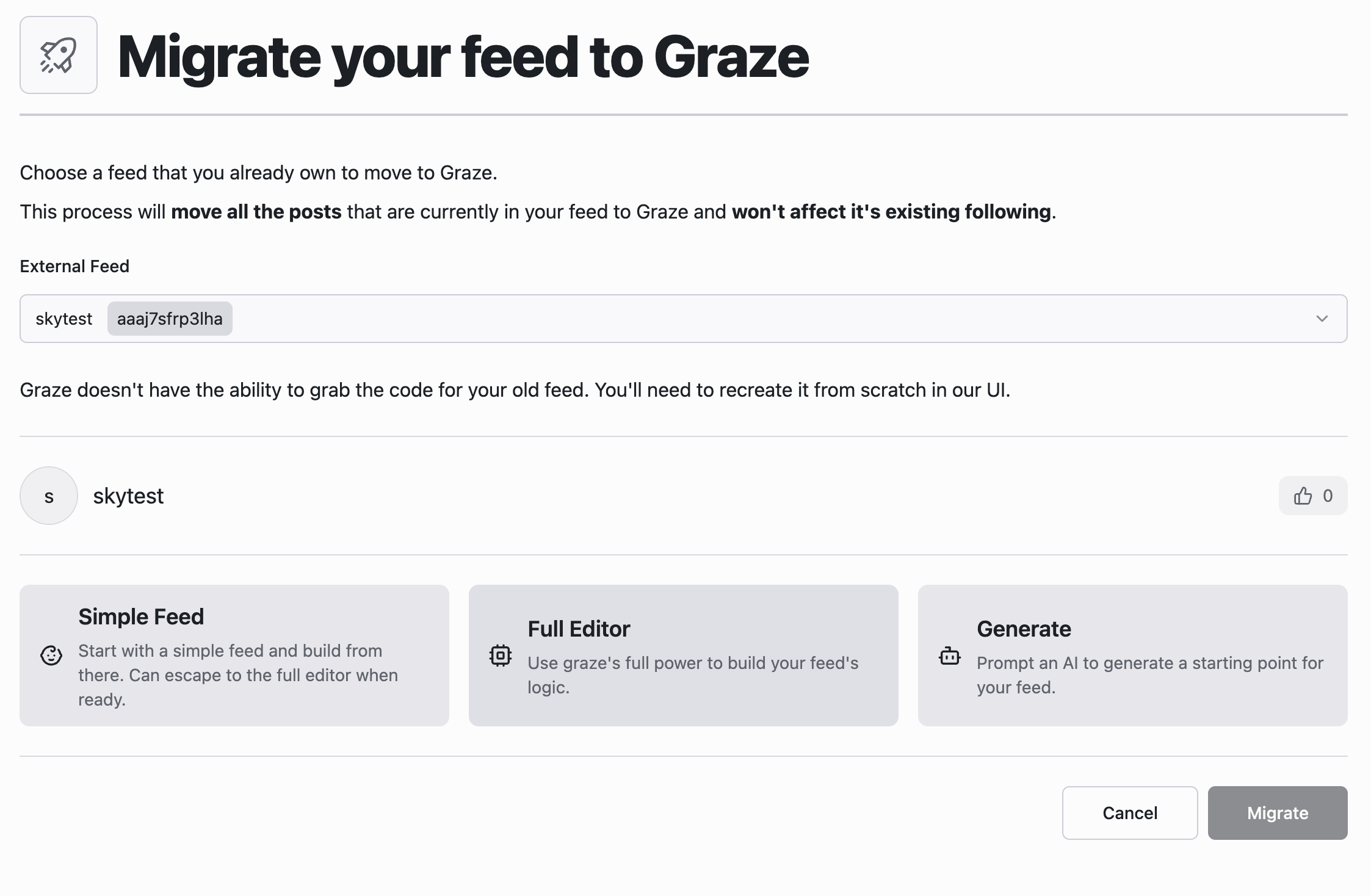
- Under External Feed, choose the feed you want to move. The list shows the feeds on your account that are built with other platforms.
- Choose how to build its logic: Simple Feed, Full Editor or Generate. We'll use Full Editor.
The editor opens with some template logic. Since we've already built the logic in our test feed, the quickest route is to copy it across:
- Open your test feed's editor in another tab. Use the Editor type button in the editor's left sidebar to switch to JSON, and copy all of the JSON.
- Back in the migration, switch the editor to JSON the same way and paste your JSON over the template.
- Press Migrate.
Graze takes you to the migrated feed's page. A banner shows that it's moving the posts that were already in your feed over to Graze, which can take a few minutes. When it's done, you'll see "Your feed has been migrated to Graze! You can now publish it to Bluesky."
The final step is to press Publish at the top of the feed's page. That completes the migration.
Now we have our feed, with the right logic, hosted on Graze with its post history, followers and likes!
If something goes wrong, the banner will say "There was an error migrating your feed." Come and talk to us on Discord and we'll help.
Migrating from BlueskyFeeds.com
If you start a migration from BlueskyFeeds.com, Graze recognises the feed and builds most of its logic for you automatically. Some feeds still need adjusting by hand, so check the generated rules carefully, and test them with Debug, before you press Migrate.
Your old feed platform
Once you've completed the migration, you shouldn't revisit your feed in your old feed builder again. If you accidentally republish using your old feed, you may break things! The best thing to do is to leave it where it is, back slowly away, and never go back!
Updated on: 18/10/2026
Thank you!